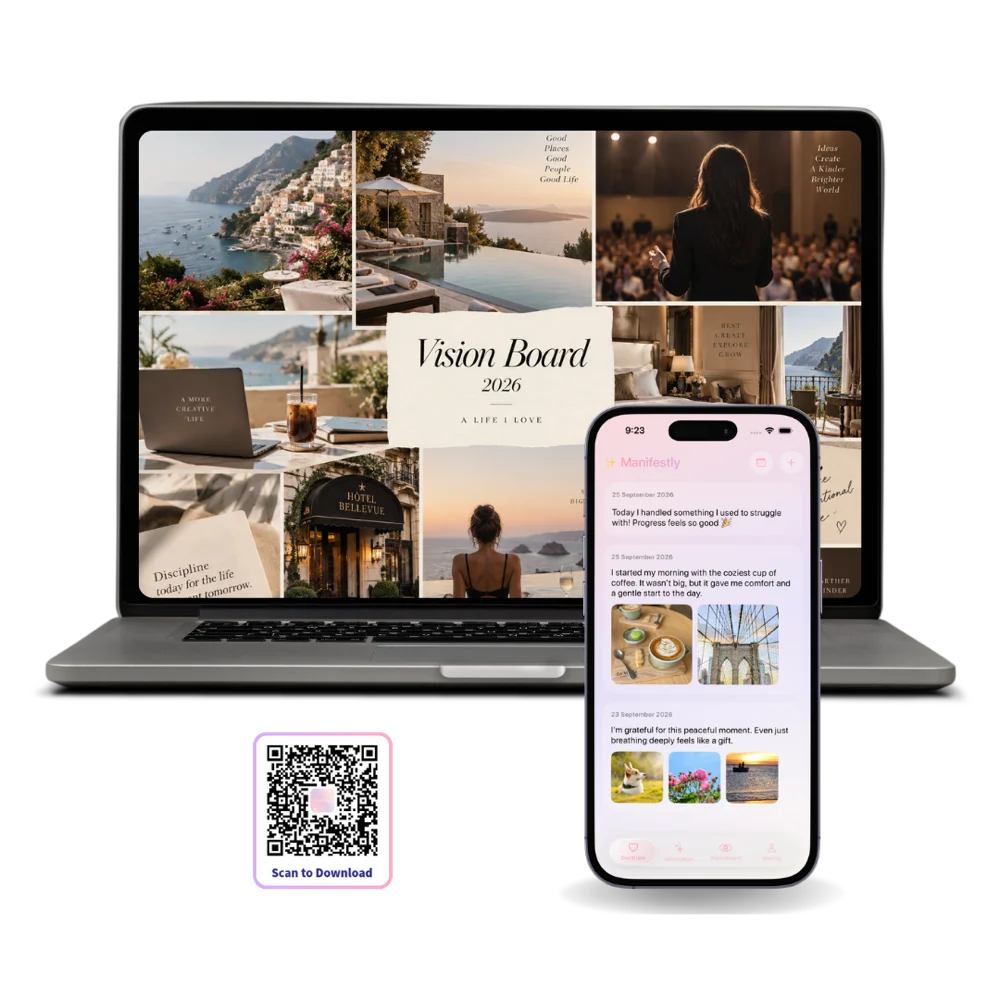
A full-size vision board canvas
Twenty images arranged the way you want them, at a size where you can actually judge the composition.
Twenty images arranged the way you want them, at a size where you can actually judge the composition.
Scripting and monthly reviews want a keyboard. A distraction-free writing view and nothing else on screen.
It lives in the menu bar. No app to switch to, no phone to pick up and get lost in.
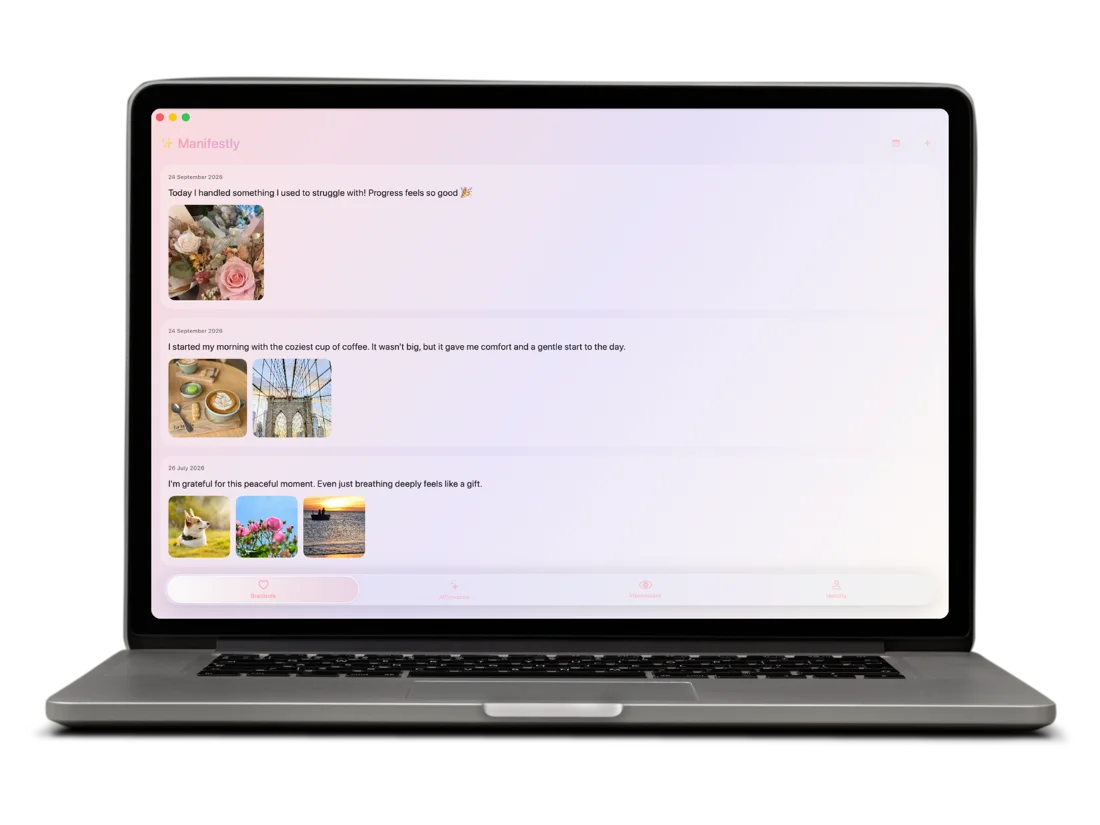
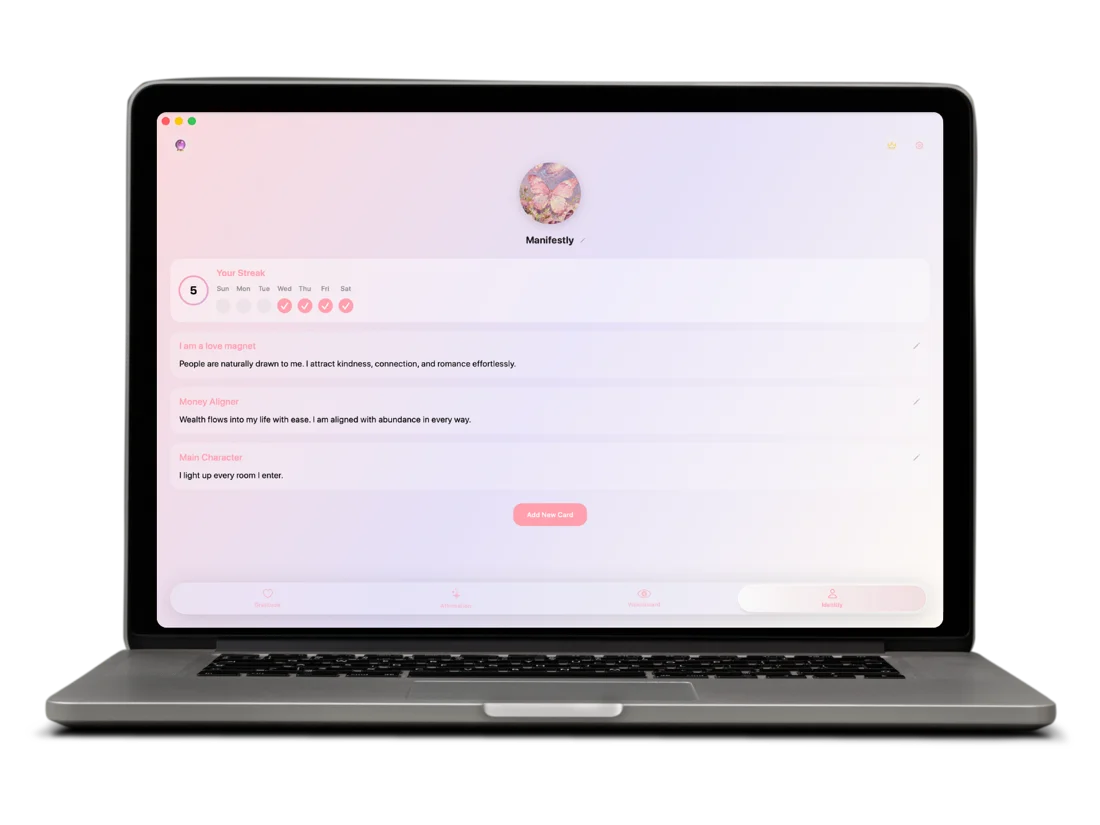
Gratitude, affirmations, vision board and identity — one tab each, and this is what every one of them looks like on Mac.
Some entries want more than three lines. On Mac the journal gives you a proper writing surface for the long end-of-week reflection, or the entry you did not know you needed to write until you started.
Typing speed matters more than it sounds: entries written on a keyboard are consistently longer and more specific than the ones thumbed out on a phone. Dictation and photo attachments work here too.
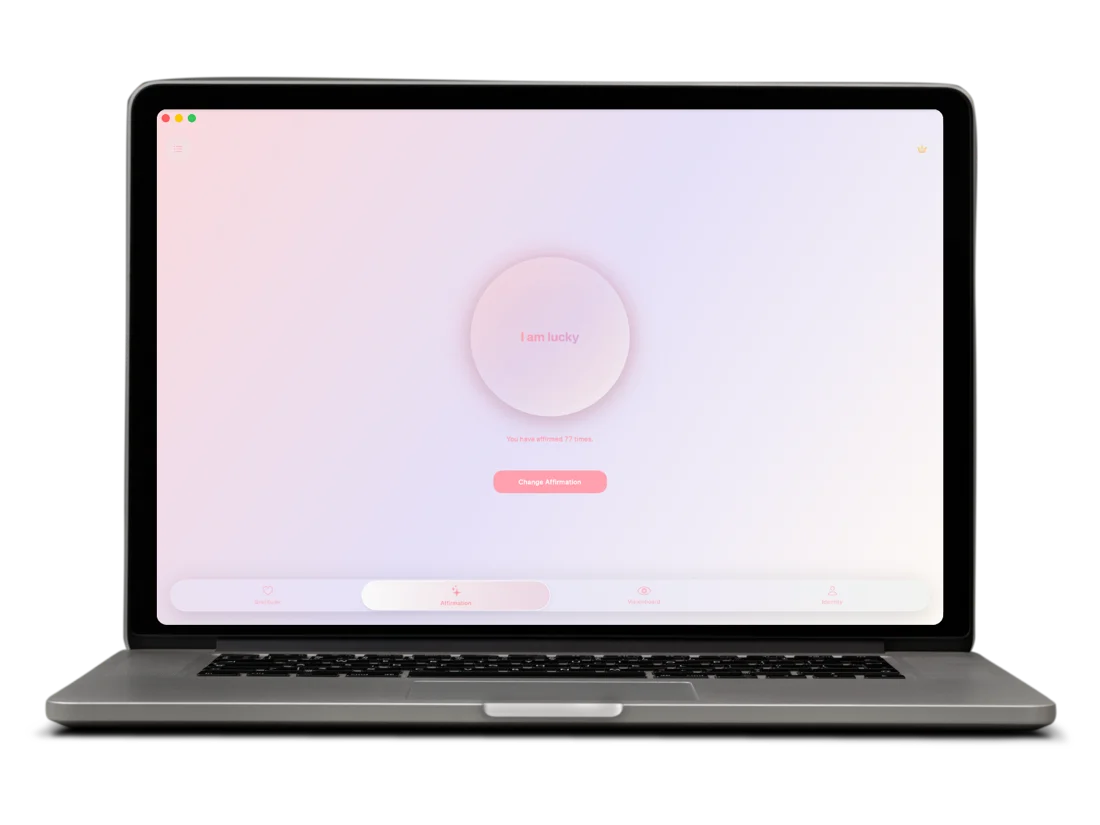
Same single circle and counter, at the size of your display. Left open on a second monitor or a spare desktop, it is a reminder that does not require picking up your phone — which is usually where a reminder turns into forty minutes of scrolling.
Tap to count a repetition, or change the words from the same library of 1,000+ affirmations across eight life areas.
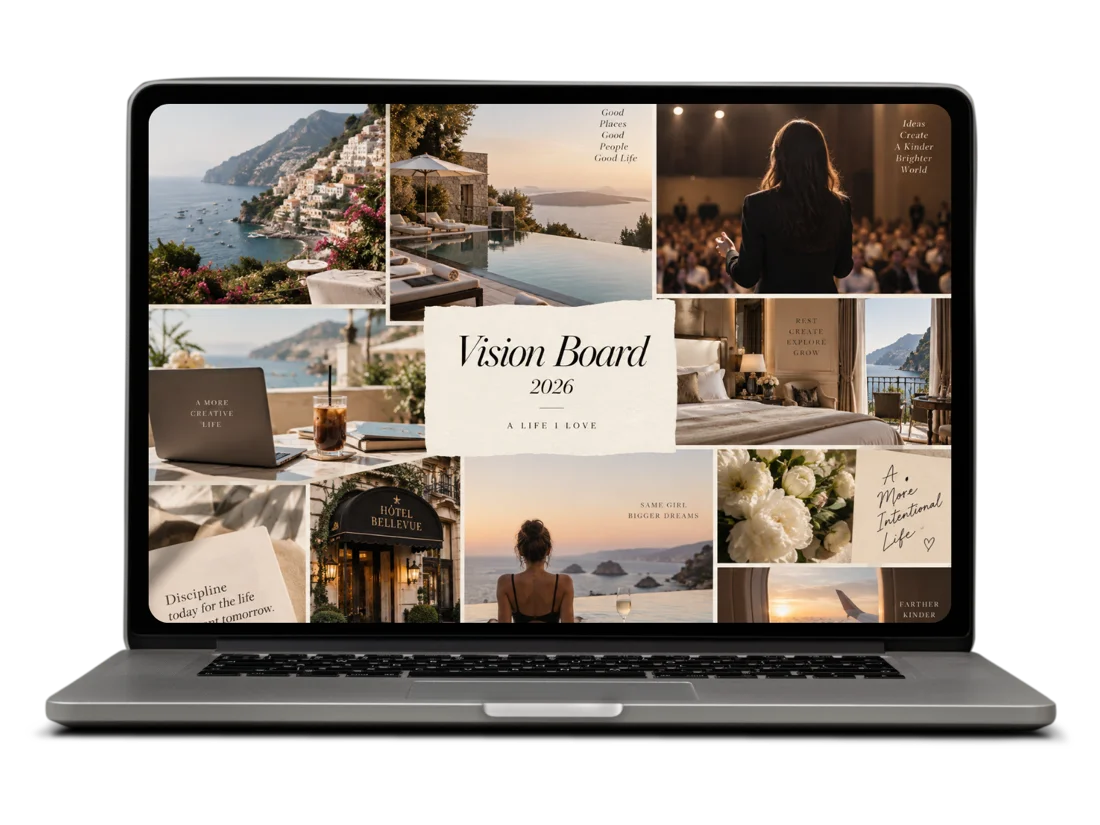
Upload the vision board you already have and let it fill the display. No browser tabs around it, no notifications on top of it — just the thing you are working toward, at a size you cannot skim past.
This is the version of a vision board that works: not an afternoon of making one, but a minute of looking at it, most days, for a year.
Identity work rewards sitting down with it. On Mac you can read every card you have written together, rewrite the ones that have gone stale, and add the one you have been circling for a month.
You define the identity — the title, the description, what it means. It is the reflective end of the practice rather than the daily tap.
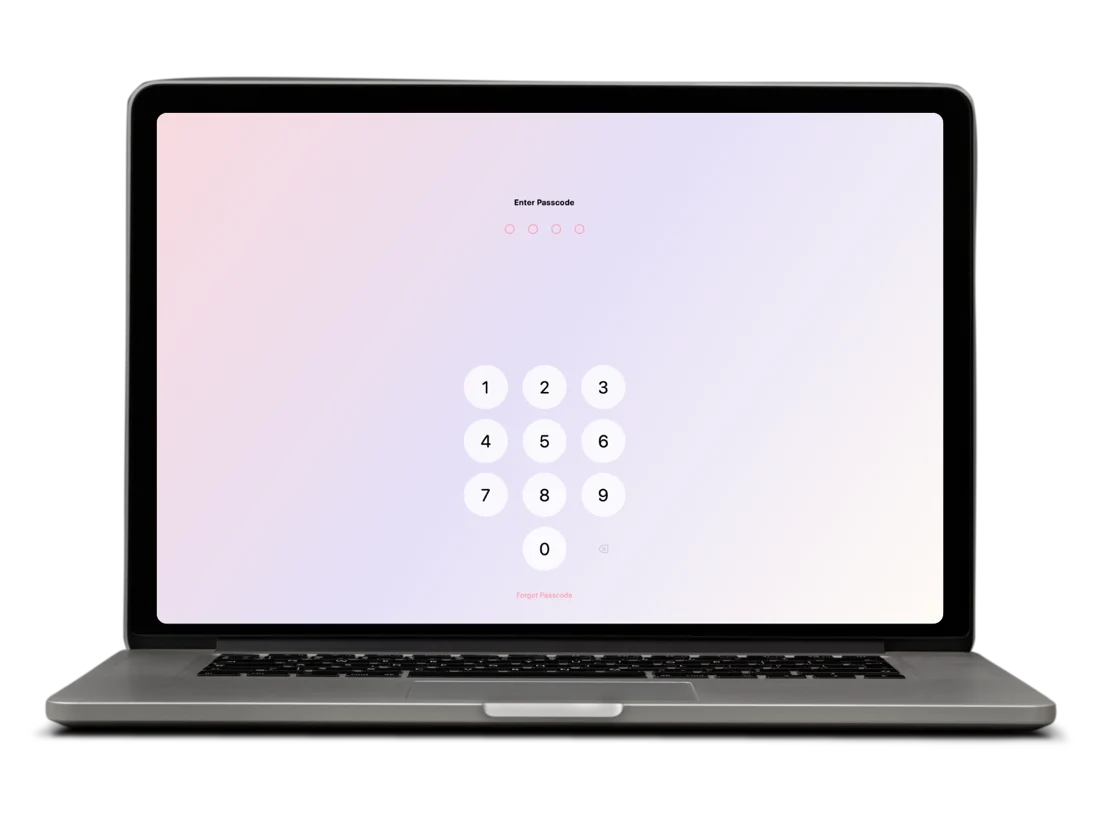
A Mac is usually the device other people look over your shoulder at — in an office, at a kitchen table, on a call where you are sharing your screen. A lock on the journal is worth having.
Most MacBooks support Touch ID rather than Face ID, so that is what Manifestly uses where it is available. Behind it, as on every platform, is a four-digit passcode — which is also the answer on a Mac mini or an external keyboard without a sensor.
Most of the daily practice happens on your phone. Mac is where the longer, slower part of it goes — the writing and the looking back.
Entries written on a keyboard are consistently longer and more specific. For scripting or a proper end-of-week reflection, that is the whole difference.
No tabs, no notifications on top of it. At this size you finally notice that three images are saying the same thing and one is carrying the board.
Scroll a month of entries in one window. This is the step almost everyone skips, and it is where the practice pays out.
Keep it open on a spare desktop. A reminder that costs you nothing, rather than one that turns into forty minutes of scrolling.
The Mac app is in App Store review. The iPhone and iPad app is free today, and your practice carries across when it lands.
It is in App Store review. The iPhone and iPad app is available today, and the Mac app will appear on the same App Store listing when review completes.
macOS 14 Sonoma or later.
No. It is the same free app and the same account — Premium lifts limits and adds iCloud sync; details are in the app and on the features page.
Yes. Your journal, boards, affirmations and identity cards sync across devices, encrypted on-device before they leave.
Yes. Open it full screen on a spare desktop or a second display and it stays there, which is the closest thing to having it pinned above your desk.

The iPhone and iPad app is free on the App Store now, and Mac joins the same listing shortly.